Introduction
If you’ve scrolled through TikTok or Instagram Reels lately, chances are you’ve already seen it — those buttery-smooth video edits with soft glows, grain overlays, and lightning-fast velocity transitions. You see the credit in the caption: ‘Template by EditProTips.’ And then comes the question every beginner asks: Where do I actually get that template, and how do I use it?
You’re not alone. The template by editprotips aesthetic has become one of the most-searched editing styles in 2026, and beginners all over the world are trying to figure out how to recreate it without spending hours learning advanced editing. The good news? You don’t have to. These templates are free, easy to import, and work beautifully on both CapCut and VN Video Editor.
In this guide, you’ll get a full breakdown of what these templates are, where to find them, and exactly how to import and customize them — even if you’ve never edited a video before. Let’s dive in.
Who is EditProTips? Understanding the Viral Aesthetic
EditProTips is a content creator and mobile editing educator who gained massive popularity on TikTok and Instagram by sharing clean, aesthetic video presets and templates. Their editing style blends cinematic color grading with fast-paced mobile editing techniques — making high-quality content creation accessible to everyday users.
The signature ‘EditProTips look’ is hard to miss. Here’s what defines it:
- Soft glow effect: A gentle bloom effect that makes skin tones look warm and dreamy
- Grainy film texture: A subtle noise overlay that adds a vintage, high-fashion feel
- Velocity editing: Rapid speed-ramp transitions synced precisely to music beats
- Muted color palettes: Desaturated highlights with warm shadows and lifted blacks
- 9:16 vertical framing: Optimized for TikTok, Reels, and YouTube Shorts
Why has this style gone viral? Because it looks polished and professional, yet requires zero experience to apply when you use a pre-built template. For growing a social media following in 2026, consistent aesthetics signal quality to both algorithms and viewers — and EditProTips templates give you that consistency instantly.
I’ve noticed that many beginners spend hours trying to replicate this look by manually adjusting filters and keyframes. The reality is that a single EditProTips template import can achieve the same result in under two minutes. Work smarter, not harder.
CapCut vs. VN: Which EditProTips Platform is Right for You?
Both CapCut and VN Video Editor support EditProTips templates — but they serve slightly different needs. Before you start, it’s worth knowing which one fits your workflow.
| Feature | CapCut | VN Video Editor |
| Ease of Use | ⭐⭐⭐⭐⭐ One-tap import | ⭐⭐⭐⭐ Slight learning curve |
| TikTok Integration | ✅ Direct share & link | ❌ Manual export needed |
| Export Quality | Up to 4K / 60fps | Up to 4K / 10-bit color |
| Template Access | Use Template button in-app | QR Code scan feature |
| Color Grading Tools | Basic filters + LUTs | Advanced color wheels + LUTs |
| Watermark (Free) | CapCut watermark | No watermark |
| Best For | Beginners & TikTok growth | Quality-first creators |
For most beginners, CapCut is the right starting point. The ‘Use Template’ button makes importing a one-tap process, and the direct TikTok integration means you can post your edit in seconds. However, if you care deeply about export quality — especially for YouTube or portfolio work — VN’s 10-bit color output and watermark-free exports make it the superior choice.
Many experienced creators actually use both: they draft in CapCut using the template, then refine and export in VN for maximum quality.
How to Find a Template by EditProTips
Finding the right template link is often the hardest part for beginners. Here are the three main methods:
Finding Trending Links on TikTok and Reels
The easiest way to find a template by editprotips capcut link is directly on TikTok. Here’s how:
- Search ‘EditProTips’ in TikTok’s search bar and go to the Videos tab.
- Look for videos with a pink ‘Use This Template’ button overlay — this is CapCut’s direct template integration.
- Tap the button. It will redirect you to CapCut with the template pre-loaded.
- Follow the official EditProTips account to get notified every time a new template drops — popular ones can disappear quickly due to regional locks or link expiry.
On Instagram Reels, look for the template credit in the caption or the ‘Use Template’ sticker in Stories. EditProTips regularly posts both CapCut and VN versions for their templates.
Using QR Codes for VN Templates
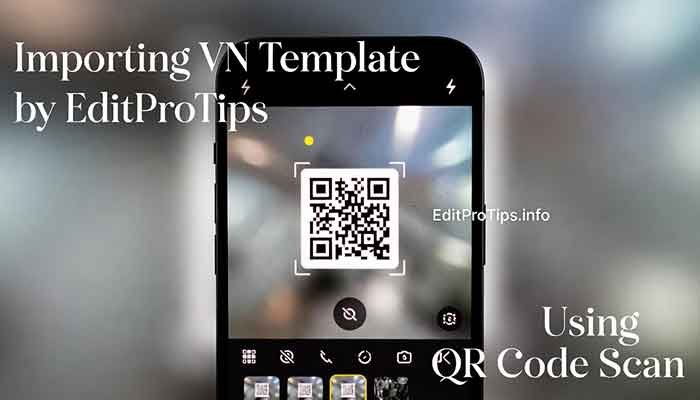
VN Video Editor uses a QR code system for template sharing — a simple scan imports the full preset directly into your timeline. Here’s where to find EditProTips QR codes:
- Pinterest: Search ‘VN Template by EditProTips’ — there are hundreds of pinned QR codes updated regularly.
- Telegram Channels: Several fan-run Telegram groups curate the latest EditProTips QR codes. Search ‘EditProTips VN Templates’ in Telegram to find active channels.
- EditProTips Website or Linktree: The creator often shares a direct link to a curated template list via their bio link on Instagram or TikTok.
Pro tip: Screenshot the QR code to your camera roll immediately. VN has a ‘Scan from Gallery’ option, so you don’t need to scan it in real-time.
Exploring the cbpng & Photo Dump Variations
If you love the EditProTips aesthetic but want a slightly different take, the Template by cbpng style is a perfect complement. While EditProTips focuses on velocity edits and motion-heavy transitions, cbpng templates specialize in photo dump layouts — grid-style slideshows with still images, minimal transitions, and a heavy focus on typography and color overlays.
Using both in rotation gives your content variety without sacrificing a cohesive aesthetic. A common strategy: use a template by editprotips for your action-heavy clips and a cbpng template for your photo-heavy posts.
Step-by-Step: How to Use the Templates
Importing into CapCut
Once you’ve found the EditProTips CapCut template link (from TikTok or a shared URL), follow these steps:
- Tap the ‘Use Template in CapCut’ button — the app will open automatically.
- You’ll see a preview of the template with placeholder media. Tap the red ‘Use Template’ button at the bottom.
- The app will prompt you to select your own photos or videos. Select them in the correct order (the sequence matters for synced edits).
- Once imported, tap each clip slot and hit the ‘Replace’ button to swap placeholder media with your own. Do not delete and re-add — this breaks the velocity sync.
- Preview your edit, then tap ‘Export’ (top right). Choose 1080p / 60fps for best quality.

Important: Always use vertical (9:16) photos or videos. Landscape media will be auto-cropped and ruin the intended aesthetic framing.
Importing into VN Editor
For VN templates, the QR code import process is just as simple:
- Open VN Video Editor and tap the ‘+’ button to start a new project, OR go to ‘Templates’ tab if available.
- Tap the QR code icon (scan feature) in the top right corner of the template screen.
- Select ‘Import from Gallery’ and choose the EditProTips QR code screenshot you saved earlier.
- VN will automatically load the full preset — including color grading, transitions, and text layers — into your timeline.
- Tap each media placeholder, hit ‘Replace,’ and add your own clips.
- Export at 4K / 30fps (or 1080p / 60fps for smoother motion) without a watermark.
Pro Tips for High-Quality Edits
Getting the template is just the beginning. Here’s how to take your edits from good to great:
Swapping Music: The velocity edit in most EditProTips templates is synced to a specific audio track. If you change the music, the beat sync will fall apart. Instead, mute the original audio and add your new track as a secondary layer, then manually re-sync the speed ramps. CapCut’s ‘Beat Sync’ auto-feature can help.
Adding Your Own LUT: After applying the template, add a personal LUT (Look-Up Table) on top using CapCut’s Filters > LUT section or VN’s Color Grading panel. A subtle warm or cool LUT can give your content a unique signature style that sets you apart from others using the same template.
Favoriting Templates: In CapCut, after importing a template, tap the bookmark icon to save it to your Favorites. This is critical — CapCut template links sometimes expire or become region-locked after app updates, and your saved version will always be accessible.
Aspect Ratio Check: Before you start, verify all your media is in 9:16 vertical format. Even one landscape clip can throw off the entire layout. Use CapCut’s built-in crop tool (set to 9:16) before importing clips into the template.
Common Mistakes & Troubleshooting
Beginners run into the same handful of issues. Here’s how to fix them:
‘Template Not Available’ Error
This is the most common issue — and it’s almost always caused by one of three things:
- Regional Lock: CapCut restricts some templates to specific countries. Solution: Use a VPN set to the US, UK, or Australia, then re-tap the template link.
- Expired Link: Templates shared on social media sometimes expire after a set period. Check EditProTips’ TikTok for a re-share or updated link.
- App Version: An outdated app often can’t render newer templates. Update CapCut or VN to the latest 2026 version before trying again.
Media Mismatch (Landscape in a Vertical Template)
Using a landscape (horizontal) photo or video inside a vertical 9:16 EditProTips template is one of the most common beginner mistakes. The result? A distorted, pixelated, or awkwardly cropped clip that destroys the aesthetic. Always pre-crop your media to 9:16 before importing it into any template.
FAQ: Everything You Need to Know
Is Template by EditProTips free to use?
Yes! All templates shared by EditProTips are completely free. You only need a free CapCut or VN account to import and use them. Some advanced CapCut features (like removing the watermark) may require a CapCut Pro subscription.
How do I remove the CapCut watermark?
You can remove the CapCut watermark by upgrading to CapCut Pro, or by exporting in VN Video Editor (which has no watermark on the free plan). Some users also use third-party apps to crop or blur the watermark — though upgrading is the cleanest solution.
Can I use these templates on CapCut Desktop/PC?
Yes! CapCut has a desktop/PC version available for Windows and Mac. However, the ‘Use Template’ feature may be limited compared to the mobile app. For the best template experience with EditProTips assets, the mobile app is recommended.
Why isn’t the ‘Use Template’ button showing up?
This usually happens because: (1) your CapCut app is outdated — update it; (2) the template has a regional lock; or (3) you’re not logged in. Try logging in with a TikTok or Google account and updating the app to the latest 2026 version.
What is the difference between Template by EditProTips and Template by cbpng?
Both are popular aesthetic template creators, but they have slightly different styles. EditProTips focuses on high-energy velocity edits and soft-glow aesthetics. Cbpng tends to focus on photo dump layouts and still-image montages. Many creators mix both styles.
Can I use VN templates on CapCut, or vice versa?
Not directly — VN and CapCut use different file formats. Templates from EditProTips designed for VN use QR codes and only work inside VN. CapCut templates use in-app links exclusive to CapCut. However, the visual style can be recreated manually across both apps.
Conclusion
The template by editprotips phenomenon isn’t just a trend — it’s proof that great content creation has become more accessible than ever. You no longer need professional editing software or years of experience to produce visually stunning videos. With the right CapCut or VN template, you can achieve a viral-worthy aesthetic in minutes.
Here’s a quick action plan to get started today:
- Follow EditProTips on TikTok and Instagram for new template drops.
- Save this guide as a reference for both CapCut and VN import steps.
- Screenshot or bookmark template QR codes immediately — they don’t last forever.
- Try one CapCut template and one VN template this week to see which platform fits your workflow.
- Add a personal LUT on top of the base template to start building your unique brand aesthetic.
Experiment freely. The beauty of these templates is that they’re a starting point, not a destination. Customize the music, adjust the colors, and make the look yours. That’s how trends evolve — and how new creators stand out.
Which EditProTips template is your favorite? Have you tried it on CapCut, VN, or both? Drop your experience, questions, or results in the comments below — we’d love to see what you’re creating!